

Key Takeaways
Wireless charging depends on a compatible phone, good coil alignment, and reasonable temperatures. Because vehicle layouts and charging behavior can vary, use the manual for your exact model when a basic troubleshooting step does not help.
- Check that the phone supports Qi wireless charging.
- Center the phone on the charging area and adjust its position if charging does not begin.
- Remove bulky or magnetic accessories if they appear to interfere.
- Expect heat, background phone use, and alignment to affect charging speed.
- Use a cable or seek service if careful repositioning and basic checks do not resolve the issue.
How the Tesla phone charging pad works
A wireless charging pad transfers energy to a compatible phone when its charging coils are close enough to couple. The basic idea is the same across many Qi charging setups, but pad shape, placement, and vehicle behavior can differ by model and year. Treat the owner’s manual as the source for the exact location and any vehicle-specific indicators.
Where the charging pad is located in different Tesla models
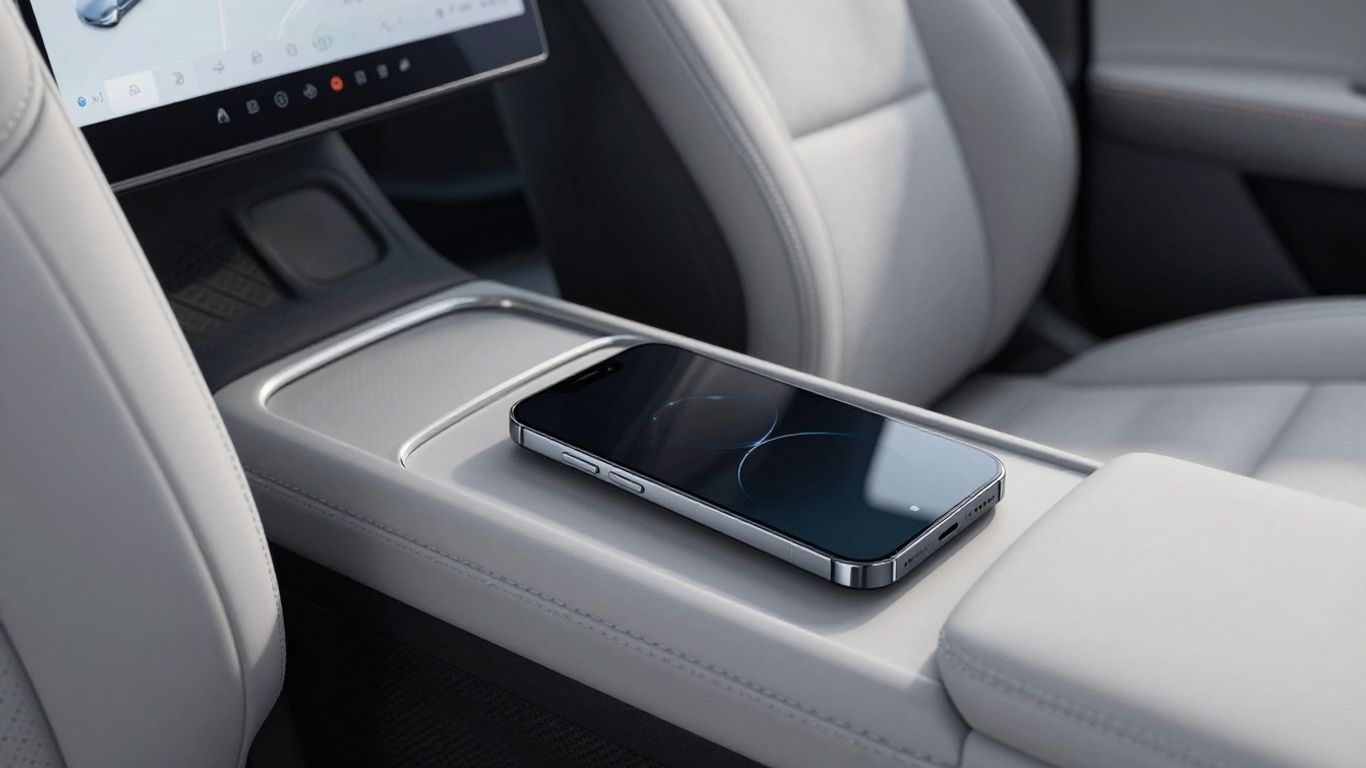
The pad’s position can vary with the vehicle’s model, year, and interior configuration, so there is no single location that safely applies to every car. Look in the center-console area and check the manual for the precise placement and any model-specific instructions. A tesla phone charging pad is easiest to use when you know which part of the surface is intended for the phone rather than assuming the whole console is active.
How to position a phone for wireless charging
Set the phone flat on the charging surface, then move it a little at a time until charging begins. A phone can look centered while its internal coil is offset, especially if the phone is large or the pad is compact. Once charging starts, avoid nudging the device or letting a cable pull it out of place.
What the charging indicators and alerts mean
Indicator lights and on-screen messages depend on the vehicle and charging hardware. A light that changes, blinks, or turns off may signal a charging state or a problem, but its meaning should be checked in the manual rather than guessed. If an alert appears, note its wording and whether it returns after you reposition the phone.
Which phones are compatible
Compatibility starts with the phone, not the car: the device must support Qi wireless charging for a Qi pad to charge it wirelessly. Some phone models that look similar differ in charging support, so check the manufacturer’s specifications for your exact model. Case thickness, attachments, and how many devices are on the pad can also affect the result.
Qi wireless charging support and phone requirements
Check the phone’s official specifications for Qi support before troubleshooting the vehicle. If the phone does not support Qi charging, placing it on a wireless pad will not make it compatible; a wired charging option may still work. When support is confirmed, test the phone without accessories so you can separate a compatibility issue from interference.
Using a phone case or magnetic accessory
A thin case often works, but a thick case, metal insert, or attached accessory can create too much distance or interfere with the charging field. Remove the case and any magnetic mount, wallet, or grip, then test the phone directly on the pad. If charging works without the accessory, check whether its maker lists it as suitable for wireless charging before using it again.
Charging two phones at once
Some pads have more than one charging position, while others are designed for a single device. Where two positions are available, set each phone over its own charging area and confirm that both show active charging; a phone resting partly across the boundary may not charge reliably. The manual can confirm how many devices the specific setup is intended to handle.
How to use the charging pad effectively
A little care with placement usually matters more than repeated tapping or restarting the phone. Keep the surface clear, set the device down steadily, and give charging a moment to register. If you use navigation or other demanding apps, remember that the phone may consume energy while it is charging.
Aligning the phone with the charging coil
The charging coil inside the phone needs to line up closely with the active area beneath the pad’s surface. Start near the middle, check whether charging has begun, and shift the phone slowly if it has not. This small placement adjustment can make the difference between a stable connection and no response at all.
A short, repeatable routine can make placement easier, particularly when the pad is unfamiliar:
- Set the phone down flat rather than at an angle.
- Center it on the marked or apparent charging area.
- Wait briefly for an indicator or charging symbol.
- Move it a small distance and check again if nothing happens.
After charging begins, leave the phone still. If the connection repeatedly stops, try the case-free test described above before assuming the pad needs repair.
Keeping the pad and phone surface clear
Dust, grit, and small objects can keep the phone from sitting flat, while loose metal objects should not be left between the phone and pad. Wipe away debris with a soft cloth and check both surfaces before setting the phone down. A clean, unobstructed contact area also makes it easier to spot whether a case or alignment is the real issue.
Managing charging while using navigation or other apps
Maps, streaming, and other active apps can use power while the phone is on the pad, so the battery may charge slowly or appear to hold steady. Screen brightness, signal conditions, and background activity also affect a phone’s power use. If you need a faster top-up, close apps you do not need or consider a wired connection.
Why a Tesla phone charging pad may not work
A charging problem does not automatically mean the hardware has failed. The phone may be out of alignment, an accessory may be interfering, or heat may temporarily interrupt charging. Work through simple checks first, then consult the vehicle manual or a service professional if the problem continues.
Phone placement or case interference
Start by taking the phone off the pad and checking for anything between the two surfaces. Remove the case and attachments, then place the bare phone flat and reposition it slowly. If another Qi-compatible phone is available, testing it can help distinguish a phone-specific issue from one tied to the charging surface.
Overheating and charging interruptions
Wireless charging can warm both the phone and the charging area, and a phone may pause charging if it becomes too hot. Direct sunlight, a hot cabin, demanding apps, or poor airflow can add to the heat. Let the device cool, move it out of direct sun where practical, and resume charging only when it is at a comfortable temperature.
Vehicle settings, software, and power-state considerations
Charging behavior may depend on the vehicle’s configuration and operating state, and those details can differ among vehicles. Review the manual for settings or power-state instructions that apply to your exact model, and check for any displayed alert. If the pad stops working across multiple compatible phones after those checks, document what happens and ask a service professional to inspect it.
Charging speed and alternatives
Wireless charging trades convenience for a connection that can be more sensitive to alignment and heat than a cable. Actual speed depends on the phone, the pad, and how the device is being used, so avoid treating a single experience as a universal rate. If you are planning broader vehicle-energy needs, a solar panel sizing guide covers a separate way to think about EV charging.
What affects wireless charging speed
The phone and charger determine the available charging rate, while heat, misalignment, case thickness, and active apps can reduce how quickly the battery gains charge. A battery that is already near full may also charge more slowly than one with a lower level. These variables make a simple before-and-after battery check more useful than judging speed by the warmth of the device.
Comparing the pad with a USB-C cable
A cable avoids the need to align two wireless coils, and it may charge faster when the phone and power source support a suitable wired charging rate. Results still depend on the phone, cable, and power output. For a broader perspective on how unrelated services approach visibility, this electrician SEO timeline is a separate guide and has no bearing on charging performance.
Choosing a compatible third-party charging accessory
If you choose an accessory, confirm that it supports the phone’s charging standard and is suitable for use in a vehicle. Check how it receives power, whether its dimensions fit the intended location, and whether it can be secured without obstructing controls or visibility. For additional reading beyond car charging, the library also includes small-business website basics, sensitive-earring materials, and mobile-game operator skills; these topics are unrelated to charger compatibility.
Care, safety, and replacement
Keeping the pad clean and avoiding excess heat can help make everyday use more predictable. Do not force the phone into a position or use an accessory that blocks vehicle controls. If the charging surface appears damaged or the problem persists after basic checks, stop using it and ask for qualified advice.
Cleaning the pad without damaging its surface
Remove the phone and loose objects before cleaning. Use a soft, lightly damp cloth, then let the area dry; avoid abrasive materials and excess liquid that could affect the surface or nearby components. The exact cleaning advice in the vehicle manual takes precedence over general care tips.
Protecting the phone and vehicle from excess heat
Avoid leaving a phone on the pad in direct sun for long periods, particularly in a hot cabin. If the phone becomes unusually warm, stop charging and let it cool before trying again. Keeping demanding apps closed during charging may also reduce heat generated by the phone itself.
When to seek service or replace the charging hardware
Seek service if the surface is cracked, visibly damaged, or repeatedly fails with more than one compatible phone after you have removed accessories and checked placement. Describe what you tested and any alerts you saw; that gives a technician a clearer starting point. If you are looking beyond automotive topics, agricultural production support is another unrelated resource, not a source of charger service advice.
Conclusion
A reliable wireless-charge routine comes down to compatibility, clear surfaces, careful alignment, and sensible heat management. Check the instructions for the exact vehicle and phone, and switch to a cable or seek service when the basic checks do not resolve the problem.
Frequently Asked Questions
Does every phone support wireless charging?
No. Check the specifications for the exact phone model to confirm Qi wireless charging support; appearance alone does not establish compatibility.
Can a phone case stop wireless charging?
It can. Thick cases, metal components, and attached accessories may interfere, so test the phone without them if charging does not begin.
Why does a phone need to be repositioned on a charging pad?
The coils inside the phone and pad need to be close and aligned. Moving the phone slightly can help establish a connection.
Is it normal for a phone to feel warm while charging wirelessly?
Some warmth can occur, but a device that becomes unusually hot should be removed from the pad and allowed to cool before charging resumes.
Can apps make charging seem slower?
Yes. Navigation, streaming, bright screens, and background activity use battery power, which can reduce the net charge gained while the phone is in use.
Is a cable a useful alternative to wireless charging?
Yes. A cable avoids wireless alignment and may charge faster when the phone and power source support an appropriate wired rate.
What should I do if wireless charging keeps stopping?
Remove the case and accessories, clear the surface, reposition the phone, and allow it to cool if warm. If the issue continues, check the relevant manuals or seek service advice.